
Patron Cleanup in Destiny Library Manager and Destiny Resource Manager: Staff, Transfers, and Multi-Site Users
Blogs
Part of the six-part Patron Management in Destiny Library Manager and Destiny Resource Manager: Where to Start series.
Once the major beginning-of-year tasks are underway, the smaller details start surfacing. The import is running. Major record issues are being reviewed. Duplicate headaches are getting sorted out.
A staff member works at more than one school. A student transferred, but something still does not look right. A user is tied to the wrong site. A record exists, but the Patron Type or Access Level may need to be confirmed against the user’s current role.
This post is written for Destiny Administrators and District Users who are working through the smaller but important cleanup details that tend to show up at the start of a school year. Some steps may also help site staff, depending on their roles and permissions.
Across school and district roles, I saw that these issues do not always look urgent at first, but they can create a lot of friction for district teams, site staff, and the people trying to use the system every day.
Why These Records Deserve a Second Look
Not every beginning-of-year issue is a missing patron record. Sometimes the record is there, but the site association is wrong. Sometimes a transfer happened, but the old site is still connected. Sometimes a staff member who works across buildings needs access at more than one school. Sometimes a record was added quickly, but a key field was never reviewed.
Destiny supports patrons being associated with multiple sites, which is especially helpful for faculty who work at more than one school and students who attend classes at multiple schools. That flexibility is useful, but it also means these details are worth checking carefully.
Start with Staff, Transfers, and Manual Changes
If I were doing a final cleanup pass, I would start with the people most likely to have changed:
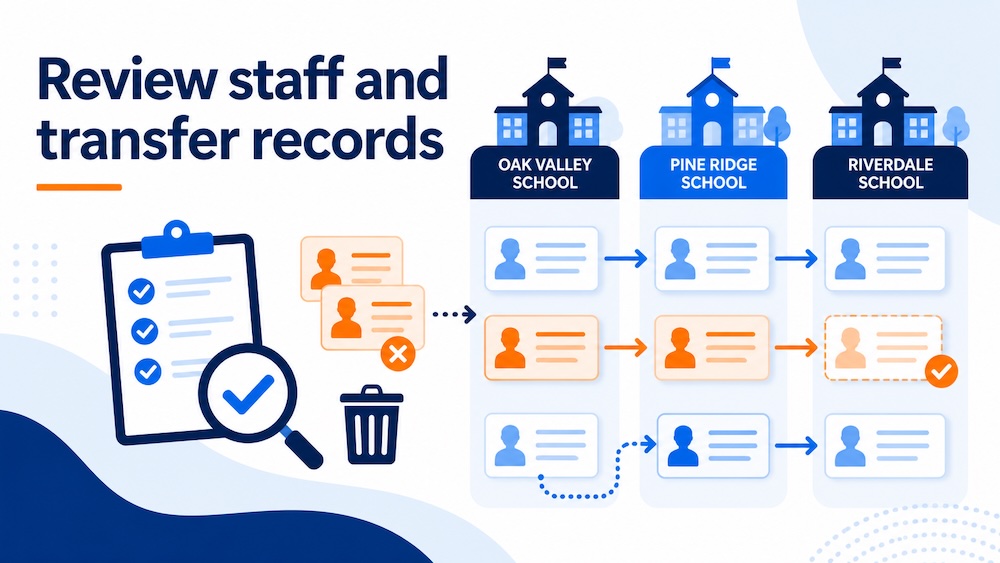
- New staff members
- Staff working across multiple schools
- Students who transferred sites
- Students or staff whose access does not match their current role
- Patrons whose records were added or adjusted manually
If you need to review or add a record manually, go to Patrons > Manage Patrons, search for the patron first, and only add a new record if one does not already exist. Add Patron Records Manually is a helpful reference here.
When you review a record, pay close attention to Patron Type, Access Level, and site details. Destiny requires a Patron Type and Access Level, the barcode number must be unique at the school, and if your district uses a District ID, it must be unique across the district.
If your district uses a scheduled or automated patron update, be careful about manual changes without checking how that process is set up. The next automated update may restore values from the district’s source data, so review the import configuration before making manual changes.
Don’t Forget Patron Photos
Patron photos are easy to push down the list until someone realizes they are missing. If you only need to update one record, go to Patrons > Manage Patrons, open the patron record, and use the picture area to upload the image. The manual patron help topic also points users to the picture tab for adding a photo.
If you need to upload photos in bulk, use Upload Patron Pictures. Before uploading, make sure you have a ZIP file containing the image files and a map file named idlink.txt. For district uploads, the map file should use the patron District ID. For site-level uploads, it should use the patron barcode.
After the upload, review the results to confirm the right records were updated. Add a Patron Picture and Upload Patron Pictures are useful Help Articles.
Clean Up Site Associations
If a patron needs to be associated with another site, go to Patrons > Manage Patrons. District users can search for the patron, click Edit, and use + Additional Site to add another site association. While you are there, make sure the Patron Type and Access Level are appropriate for that school. If the site uses Follett Destiny® Resource Manager, also confirm the Resource Group associated with the Access Level.
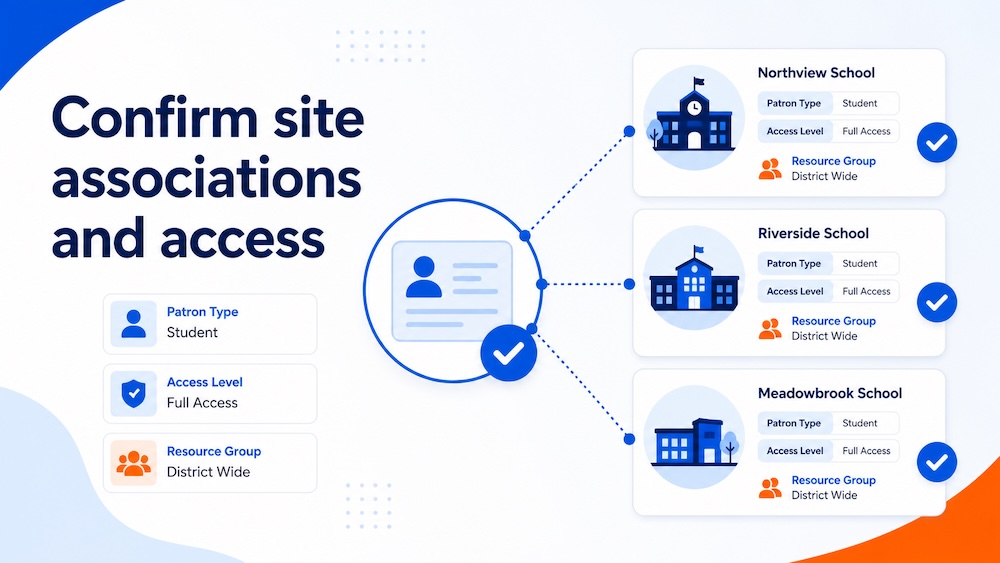 If you need to add an additional site association for a group of patrons, district users can go to District Back Office > Patrons > Update Patrons > Update and use the global association tools. Destiny lets you identify the patrons, add one additional site at a time, and assign a Patron Type and Access Level for the new site.
If old secondary associations need to be cleaned up, district users can go to District Back Office > Patrons > Update > Remove. Destiny lets you remove associations using global criteria or a file of District IDs, preview the results, and complete the removal. The preview step gives you a chance to confirm that you are removing the right associations before committing the change.
For Resource Manager users, a new site association is not complete until the patron’s resource access is reviewed. Confirm the Access Level and Resource Group for the new site, especially when a student or staff member is moving between schools or using resources at multiple sites.
If the patron has resource items checked out during a transfer, confirm whether the applicable Resource Manager template is configured to transfer checked-out items with the patron. If it is not, the resource checkouts may need to be handled separately.
What I Would Check First
- Spot-check recent staff changes.
- Review transferred students to make sure the right site association is in place.
- Review active resource checkouts before completing a transfer or removing a site association.
- Confirm Patron Type and Access Level for cross-site users.
- For Resource Manager users, confirm the Resource Group at each associated site.
- Look for secondary site associations that no longer make sense.
- Make sure manually added records were searched first and completed fully.
- Use district-level tools when the issue affects groups, not just individuals.
Your Beginning-of-Year Takeaway
Staff changes, transfers, and multi-site users may feel like smaller details, but they can create day-to-day confusion if they are not cleaned up early.
- Review recent staff and transfer records.
- Confirm the right site associations are in place.
- Check Patron Type and Access Level for users working across schools.
- Clean up outdated secondary associations when needed.
- Use district-level tools when the issue affects groups.
Read Previous: Inactivate or Delete Patron Records in Destiny Library Manager or Destiny Resource Manager? How to Decide
This post is part of the six-part Patron Management in Destiny Library Manager and Destiny Resource Manager: Where to Start series.
About the Author
Richelle O’Neil spent a decade serving schools as both a librarian and district administrator before bringing that firsthand experience to Follett Software. As a Customer Success Manager specializing in the Follett Software Library Suite, she understands the day-to-day realities schools face and what it takes to support them well. At home in Texas, she is usually trying to keep up with her two rescue dogs, Ben and Gracey.


Related Resources
K-12 Facility Scheduling Workflows
Blogs
What Is K-12 IT Asset Management?
Blogs

How to Run a K-12 Library with Limited Staff
Blogs