
School Asset Management Software: A K–12 District Device Accountability Playbook
Blogs
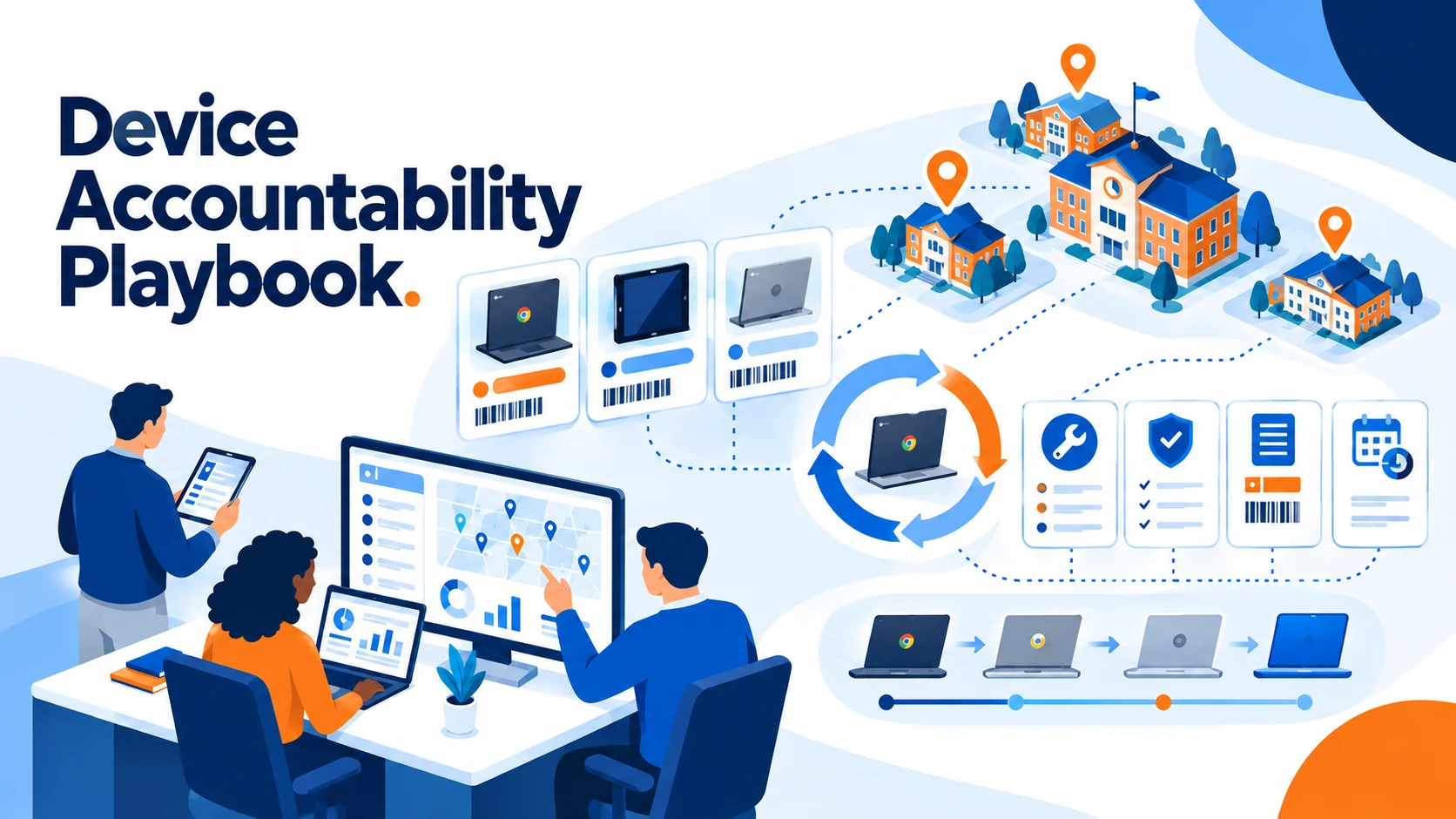 How do districts track Chromebooks across schools? School asset management software gives districts one structured way to record, monitor, and maintain Chromebooks and other devices from purchase through retirement.
Instead of relying on separate spreadsheets at each school, technology teams can connect a device to its asset tag, serial number, user, location, repair history, and lifecycle status. This playbook is designed for district IT leaders who are building or improving a device accountability process.
The decisions behind reliable school device tracking are straightforward but important: what to record, who owns each handoff, how to reconcile the data, and how to use the resulting information for service, audits, and refresh planning. Follett’s existing device-tracking guide explains the basic lifecycle; this playbook turns that lifecycle into a district operating checklist.
That structure matters when a district manages devices across multiple campuses, grade levels, classrooms, carts, and student homes. A clear record helps the IT team answer practical questions: What does the district own? Where is a device now? Who is responsible for it? Is it ready to use, in repair, missing, or due for replacement?
Why Chromebook inventory management matters
Chromebook inventory management helps districts maintain visibility after devices leave the storeroom. A device may move from a central warehouse to a school, from a school to a student, or from one campus to another. If those changes are recorded inconsistently, the district’s inventory becomes difficult to trust.
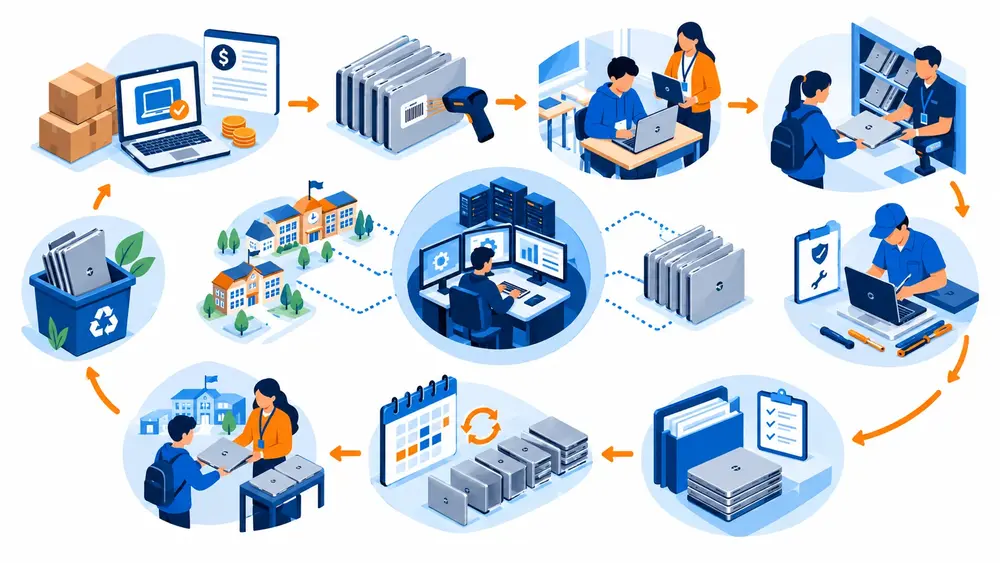
A structured process connects the major moments in a device’s life:
-
Procurement and funding documentation.
-
Asset tagging and system entry.
-
Assignment to a student, staff member, school, or location.
-
Check-in and checkout activity.
-
Repairs, support requests, and warranty information.
-
Periodic inventory reconciliation.
-
Refresh, reassignment, and retirement planning.
The goal is not to create more administrative work. It is to give the team a reliable record that can be updated as the device moves through the district.
What should school device tracking include?
A useful school device tracking process should connect inventory data to the workflows that keep technology operations moving.
Can the district see every device in one place?
Centralized records help technology leaders view assets across campuses instead of stitching together school-level files. The system should support the district’s device types, locations, users, assignments, and status information.
Can IT connect a device to the person using it?
Assignment history gives the district a clearer record of which student, staff member, school, or department is responsible for a device. Check-in and checkout records also make it easier to investigate missing equipment and prepare for inventory reviews.
Can technicians see repair and support history?
A device record becomes more useful when support requests and repair activity are connected to it. When a technician can see the device’s history, the team can spend less time searching across systems and more time deciding whether to repair, reassign, or replace it.
Can the team update records in the field?
Technology staff often manage deployments, collections, and audits away from a desk. Mobile access and barcode scanning can help technicians update records where the work happens instead of writing notes to enter later.
Can the district plan beyond the next inventory count?
Lifecycle information supports decisions about warranties, refresh cycles, replacement priorities, and budget timing. School device tracking should help leaders understand not just where a device is today, but what may require attention next.
How Follett IT Asset Manager supports district-wide device visibility
Follett IT Asset Manager brings asset management, IT Help Desk workflows, and day-to-day technology operations into one system built for K–12 districts. It supports device records, assignments, lifecycle activity, barcode scanning, mobile field work, and connections to MDM and SIS data.
That connected approach helps technology teams work from a shared operational picture. A support request can be connected to the relevant device record, while district leaders can use asset and service information to improve accountability and plan technology investments.
For districts that need more than an inventory list, the Technology Suite connects device management and support workflows with broader operational visibility. IT teams can also coordinate with facilities teams when device support depends on rooms, power, cabling, building access, or other school operations.
What is the difference between device tracking and IT asset management?
Device tracking focuses on location, assignment, and status. IT asset management connects those records to the full device lifecycle, including procurement, funding, repairs, warranties, support history, audits, refresh planning, and retirement.
A district with a small fleet may begin with a consistent tagging and inventory process. Districts managing larger 1:1 programs across multiple campuses generally need a more complete system because location data alone does not explain a device’s condition, service history, or replacement needs.
What should a district device accountability playbook include?
A useful playbook turns school device tracking into an owned, repeatable process. Use these five steps as a starting point.
1. Define the minimum device record
Document the fields every Chromebook or other technology asset must have, including its asset tag, serial number, model, location, assigned user, condition, ownership or funding information, warranty status, repair history, and lifecycle status.
2. Assign ownership at every handoff
Name the role responsible when a device is received, tagged, deployed, transferred, sent for repair, returned, reassigned, or retired. Shared responsibility is workable only when each handoff has a clear owner.
3. Standardize Chromebook inventory management
Use consistent tagging, assignment, check-in, checkout, and transfer procedures across schools. A common process makes district-level reporting more reliable and reduces the number of records that require manual cleanup.
4. Reconcile records on a defined cadence
Set a schedule for physical checks and spot reviews based on the district’s device program. Record what was found, what changed, and who completed the update.
5. Use the data for decisions
Review assignment, condition, repair, warranty, and age information before making refresh, replacement, budget, or support decisions. The purpose of school device tracking is not only to know what the district owns. It is to know what requires attention next.
The strongest process is the one the district can maintain throughout the school year. A complete record created during a one-time inventory project will become outdated if no one owns the next update.
Frequently asked questions
How do schools keep track of student Chromebooks?
Schools use a structured asset management process to assign each Chromebook to a student or staff member, record check-in and checkout activity, connect repairs to the device, and maintain a lifecycle history.
What information should a Chromebook record include?
A Chromebook record may include its asset tag, serial number, model, purchase or funding information, location, assigned user, warranty status, repair history, and lifecycle status.
Can school asset management software track devices purchased by individual schools?
Yes. Districts can include site-purchased devices in the central process so technology leaders have a more complete view of the equipment the district owns and supports.
How does school device tracking support audits?
Centralized assignment, location, condition, and lifecycle records make it easier to prepare reports and identify gaps before an audit or inventory review.
Does Follett IT Asset Manager include help desk workflows?
IT Asset Manager includes IT Help Desk capabilities so support requests and device information can be managed together in one K–12 technology system.
Better school days depend on the work happening behind the scenes. Follett Software helps districts manage library, technology, and facilities operations with connected systems that improve visibility, accountability, and the time teams have to support educators and students.
Related Product

Related Resources
K-12 Facility Scheduling Workflows
Blogs
What Is K-12 IT Asset Management?
Blogs

How to Run a K-12 Library with Limited Staff
Blogs